
Deliveries
General
A Delivery sends one or more Releases to one or more Partners. It checks everything first, then copies each release - its DDEX XML, audio and artwork - to every partner's server, and keeps a log of what happened.
| Column | Description |
|---|---|
| Partners | The partners it is addressed to |
| Releases | How many releases it contains |
| Date | When it finished |
| Status | Pending, Running, Success, Failed or Canceled |
New creates an empty delivery and opens it. A delivery is a record in its own right: it stays in the list with its status and log, so it doubles as the history of what was sent to whom.
Edit view
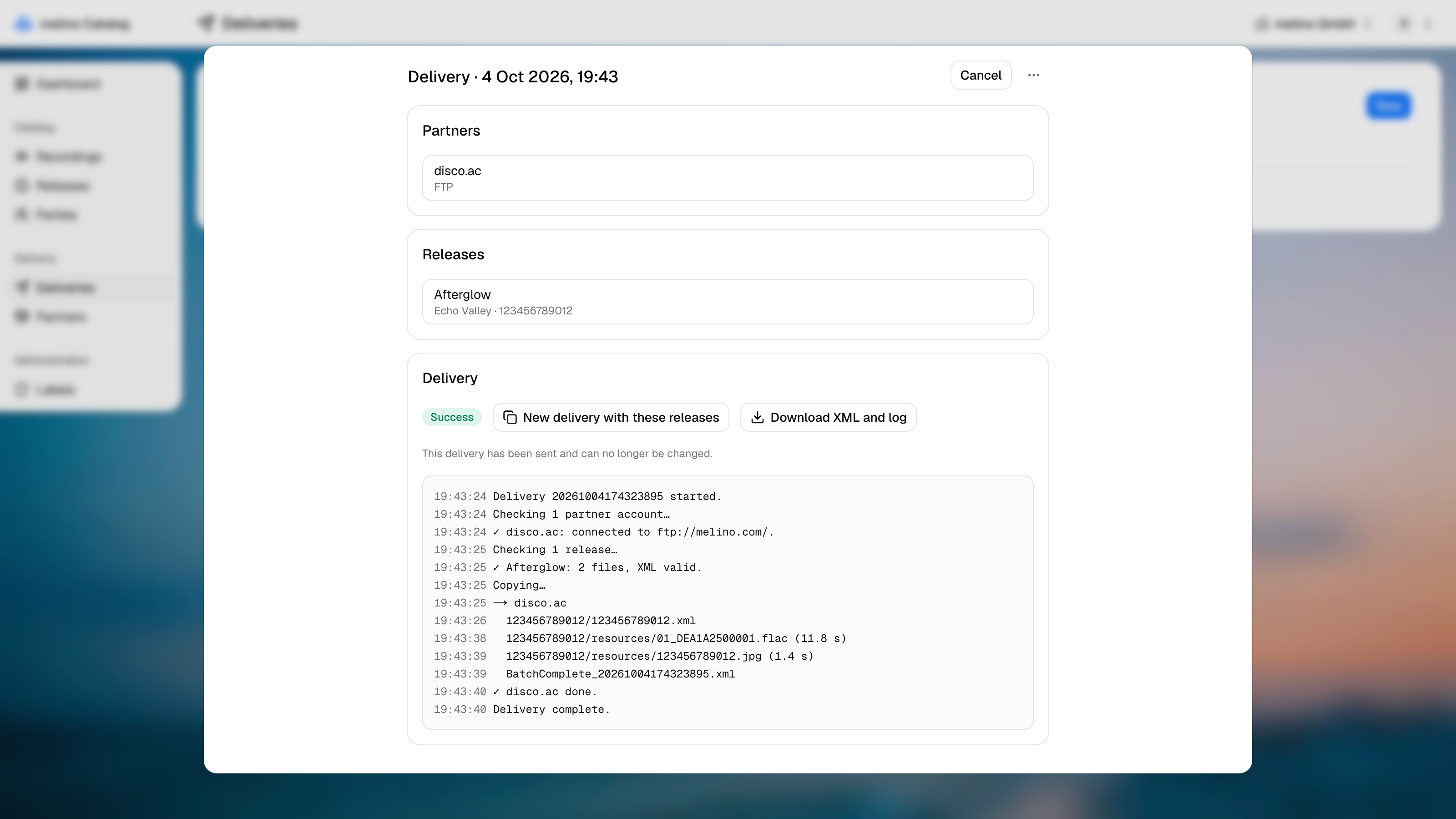
The dialog has three cards.
- Partners - who receives it. Pick one or several.
- Releases - what is sent. Pick one or several.
- Delivery - the status, the buttons and the live log.
Partners and releases are saved like any other edit, with Save. Deliver sends what was saved, so while there are unsaved changes it stays disabled, with a note saying to save first. It also needs at least one partner and one release.
What happens when you press Deliver
The delivery runs in three stages, each written to the log as it happens.
1. Checking the partners. Each partner's account is checked for missing fields, and then a connection is opened - a login for FTP and SFTP, reaching the bucket for S3.
2. Checking the releases. For every release the delivery works out which files it would send and everything that stands in the way. It builds the DDEX ERN message and validates it against the schema. Problems are collected rather than stopping at the first, so one run tells you everything to fix:
- no main UPC - the UPC names the release's folder
- no recordings on the release
- a track without an audio file, or with a master that is not WAV or FLAC
- a master in a different format than a partner prefers
- no cover artwork
- a file that is recorded in the catalog but missing from storage
- an XML message that fails the DDEX schema
3. Copying. Only if every partner and every release passed. For each partner, the delivery creates a batch folder and copies into it:
{batch}/
  {UPC}/
    {UPC}.xml
    resources/
      01_{ISRC}.flac
      {UPC}.jpg
  BatchComplete_{batch}.xml
The batch folder is named after the moment the delivery started (20261004174323895). BatchComplete_{batch}.xml is an empty file written last, which tells the partner the batch is whole and ready to pick up. Each file is logged with how long it took.
If anything fails in stages 1 or 2, nothing is copied to anyone. Fix the problems in the log and press Deliver again. If a copy fails for one partner, the others are still tried and the delivery ends as Failed.
Status
| Status | Meaning |
|---|---|
| Pending | Created, never run |
| Running | In progress |
| Success | Every partner received everything |
| Failed | Validation or copying failed - the log says where |
| Canceled | Stopped before it finished |
A pending, failed or canceled delivery can be changed and delivered again. Each new run starts a fresh log, and a new batch folder.
Running in the background
The delivery runs on the server, not in your browser. You can close the dialog, or the whole tab, and it keeps going; reopening it shows the log up to that point and carries on following it.
Stop cancels a running delivery and logs Stopped by user. Files already copied to a partner stay where they are, but without BatchComplete the batch is not marked ready.
After a successful delivery
A delivery that succeeded is read-only for good - it is the record of what was sent to whom. Two buttons take its place:
- Download XML and log - a zip with every delivered XML file and the log
- New delivery with these releases - a copy with the same releases and no partners, for sending them somewhere else or again
The XML in a delivery points at the audio and artwork files that are delivered with it. The XML you download from a Release alone does not, since there is nothing delivered next to it.
Deleting a delivery asks first and removes its log with it.