
Statement Tools
The Statement Tools allow you to view and manage all statements for a billing period.
After selecting the Company and the billing period, the Statements are loaded and displayed.
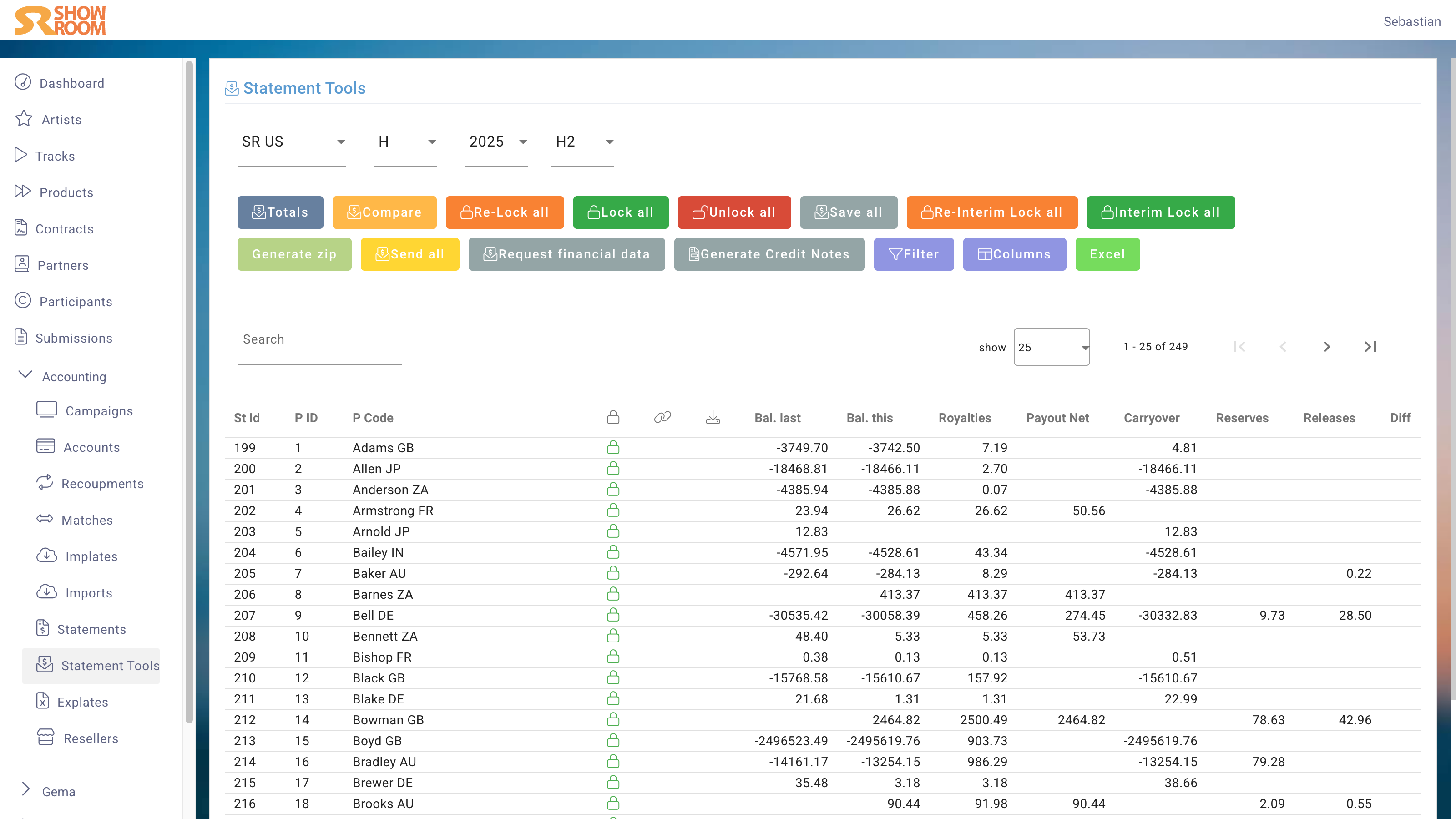
Functions
Totals
Statements are complex to calculate and therefore are not continuously processed in the background. The sums in the table below reflect the sums from the last calculation.
To update the sums for all Statements, click use Totals button. The new sums will be immediately available from then on.
The difference between Totaling and an Interim Lock is that only the visible sums are calculated and written to the database; no details are included. This significantly speeds up the process, but reporting cannot access very individual values, for example, calculate the license costs for a track during that period.
Compare
The Compare function allows you to recalculate the locked statements. This makes it possible to determine whether a different result would be obtained today without having to unlock the statements.
Lock
The Lock function allows you to lock all statements for the selected period at once. This will also generate the PDF and Excel files for all statements in one go.
Re-lock
If you have unlocked multiple statements, you can use the Re-lock function to lock them again. This will also re-generate the files, without unlocking and locking the statements sequentially.
Unlock
The Unlock function allows you to unlock all statements for the selected period at once.
Save
The Save function allows you to save a specific Explate for all locked Statements.
This is very useful if, for example, you want to generate a Debugging Explate of all Statements. The additional Excel files can then be downloaded as a ZIP file using the Download All function.
Interim Lock
The Interim Lock function allows you to lock all Statements for the selected period without generating the PDF and Excel files. This is useful for quickly locking Statements while deferring the file generation to a later time.
This makes it possible to quickly report the license usage for an ongoing period and include it in a Power BI report. A Lock saves the values pre-calculated by an "Interim Lock" and generates the files.
Re-interim Lock
The Re-interim Lock function allows you to re-interim-lock all Statements for the selected period. This is useful if you have made changes to the license usage for an ongoing period and want to quickly update the reported values without generating the files.
Download
The Download function allows you to download a ZIP file containing the PDF and Excel files for all locked Statements for the selected period.
Since this process can take some time, first, a ZIP file will be generated and second, an email with a download link will be sent to the user once it is complete.
Send
The Send function allows you to send all locked Statements for the selected period to the respective Partners. The sending is also the moment the Statement and Credit Note are made available in the Artist Portal.
Request financial data
The Request financial data function allows you to request financial data from the Partners who will receive a Statement for this period and whose financial data is incomplete.
Having the most up-to-date financial data from Partners is a prerequisite for the legally compliant processing of the Credit Note. To ensure prompt payment to Partners after the Statements have been sent, it is advisable to request and enter this information well in advance.
Generate Credit Notes
The Generate Credit Notes function allows you to generate Credit Notes for all locked Statements, if these were not already created during the locking, e.g. because financial data was missing for one Partner and is now available.
Table Tools
Filter
The Filter function allows you to filter the Statements based on the criteria locked/unlocked, Tags, and Partner IDs.
To filter by Partner IDs, enter the IDs separated by commas, e.g., 123,456,789. Alternatively, you can paste them as a list from the clipboard, e.g., via copy and paste from Excel:
123
456
789
Filtered Functions
When a filter is applied, all functionalities are only applied to the filtered Statements. For example, by entering Partner IDs, only the Statements of those Partners will be sent.
If the same function is later applied without a filter, previously processed Statements are skipped. Therefore, if some Statements have already been sent within a period, the Send function will only send those that haven't yet been sent. No Statement will be sent twice, even if the function is applied multiple times.
Excel
The Excel function allows you to export the table of Statements as an Excel file. This is useful for further analysis or reporting.
Table
The following columns provide information about the key figures:
| Column | Description |
|---|---|
| St ID | Statement ID, you'll also find it on the Statement cover page. |
| P ID | Partner ID |
| P Code | Partner Code |
| Status | locked (green icon) / unlocked (red icon) |
| Open | Link to open in a new tab |
| Download | Download a ZIP containing PDF & Excel |
| Bal. last | Account balance for the last period |
| Bal. this | Account balance for this period |
| Royalties | The sum of the license participation of this statement |
| Payout Net | The net payout of this statement |
| Carryover | If the total is negative or below the minimum payout amount, it will be carried forward to the next period |
| Reserves | Built returns reserves on physical sales and third-party licensing revenues |
| Releases | Released returns reserves from last period |
| Diff | |
| Phy | Licenses total for physical sales |
| Dig | Licenses total for digital sales |
| 3rd | Licenses total for third party licenses |
| Rcpmts | Sum of all Recupments |
| PR | |
| VAT | Applied Value Added Tax |
| Sent | Date and time of sending (if sent by system) |
| Note | Internal notes |
| PNote | |
| Size of PDF file | |
| Excel | Size of Excel file |
| Docx | Size of Word file (if applicable) |
| Zip | Size of ZIP file |
| Duration | Duration of the locking process |
| ZipCreated | Date and time of the zipping process |
| Paid | If the Credit Note for this statement is flagged as paid |
| Invoiced | |
| Interim locked | If the statement is interim locked (without creating the files) |
| Interim locked date | Date and time of the interim lock |
| Calculated | |
| CCN | The number of the Credit Note assigned to the Statement |
| Fin data | If the partner's financial data is sufficient for a Credit Note |