Statements
Here you view a single Statement for one Partner.
You can view and manage all Statements for a period in Statement Tools.
To select a Statement, choose the Partner and the time period. Arrows allow you to navigate to the next or previous Partner or period.
A Statement has the following components:
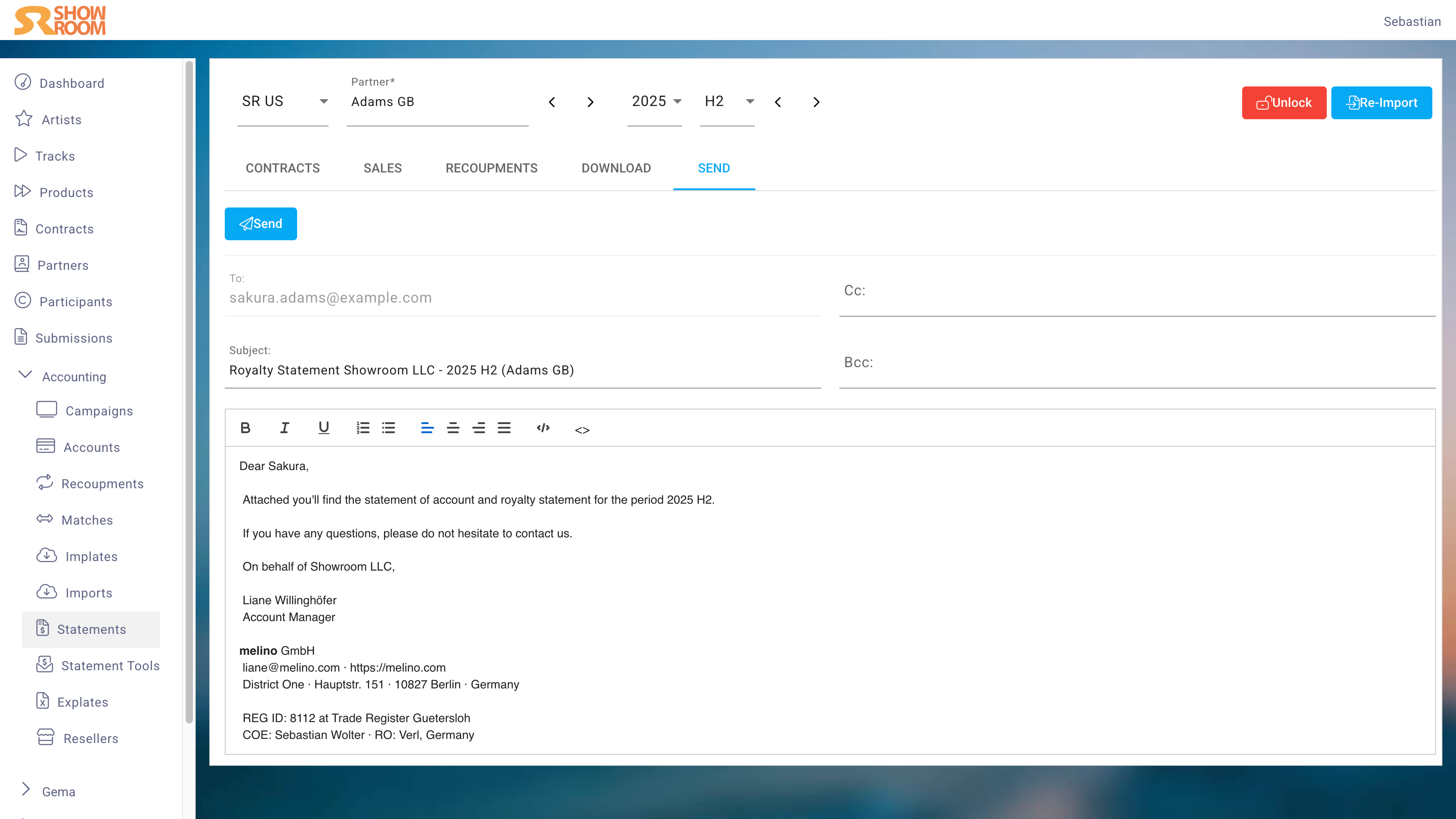
An overview of the various amounts and details regarding the licensor (Partner), licensee (Company), and time period. The licensor receives this as a PDF file.
An Excel file with all sales in detail. This file also explains in words how the license fee shown for each sale was calculated.
Both files will later be available for download to the licensor in the Artist Portal, but can also be sent as an email attachment.
Contracts
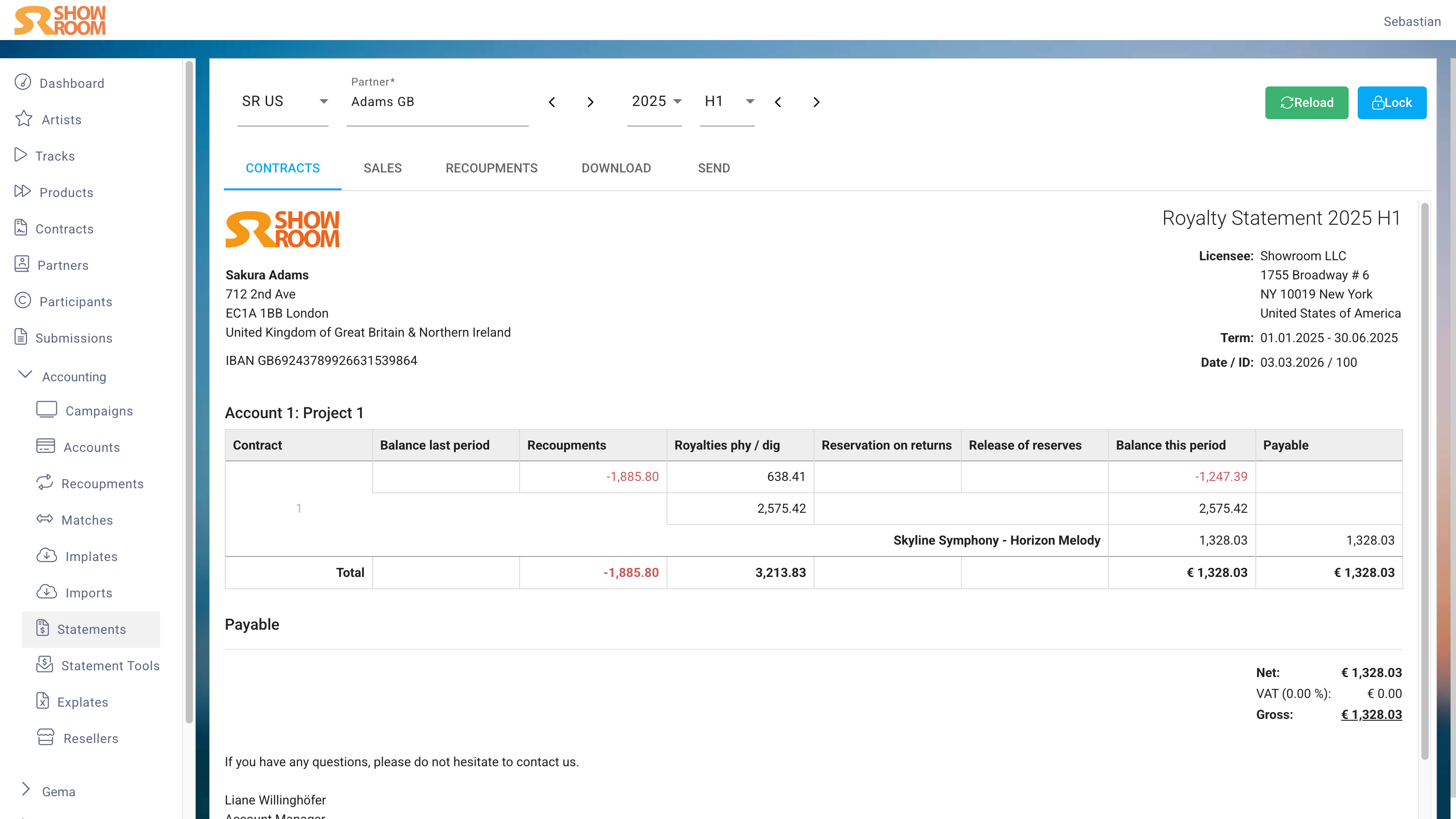
The view Contracts is divided into the sections
Header
The Header displays the addresses of the Partner and Company, as well as the exact start and end dates of the billing period.
Body
Here, all Contracts for a Partner to be billed are listed in blocks, along with the key totals. These are:
Balance last period
A negative total carried over from the previous period to the current one. If this is the first Statement billed or if there was no previous carryover, this field remains empty.
Recoupments
The total of all Recoupments for this period. Details on this and how this total is calculated can be found in the Recoupments section of the same Statement.
Royalties (Physical/Digital)
The upper field shows revenue from physical sales and third-party licensing revenue.
The lower field shows revenue from digital sales.
Reservation on Returns
If a returns reserve has been agreed upon in the contract, it is calculated as a percentage of physical sales and third-party licensing revenue.
Release of Reserves
The returns reserve from the previous period is released here. As a rule, this means it is fully credited back to the licensor, unless there were more returns than sales in the current period.
Balance this Period
The sum of the amounts described above.
Payable
If the amounts result in a positive balance, this is shown here. If the balance is negative, the field remains empty.
If Contracts are assigned to an Account, all Contracts within that Account are listed together. If there are multiple Accounts, these are listed together with their subtotals. Contracts without an Account follow.
A typical structure would therefore be, for example:
Statement
├─ Account 1
│  ├─ Contract 1
│  └─ Contract 2
├─ Account 2
│  ├─ Contract 3
│  └─ Contract 4
├─ Contract 5
└─ Contract 6
Accounts can also be understood as a group of Contracts with the same Partner.
Per default an Account is cross-accountable, meaning all Contracts within an Account are offset against each other. A Contract with a negative result, e.g., due to an advance payment or marketing costs, debits Contracts with a positive result in the same Account, reducing them by the negative amount.
If an Account is not cross-accountable, meaning the Contracts within an Account are not offset against each other, the Account serves only for overview purposes and has no effect on the Contracts or their results.
Footer
The footer is freely editable in Company Edit. Any number of templates can be created there and automatically assigned, depending on: Company, Partner, Language, Settlement with payout amount, Settlement with negative result and Deficit Statements, i.e., when the licensor has to repay a negative result.
Sales
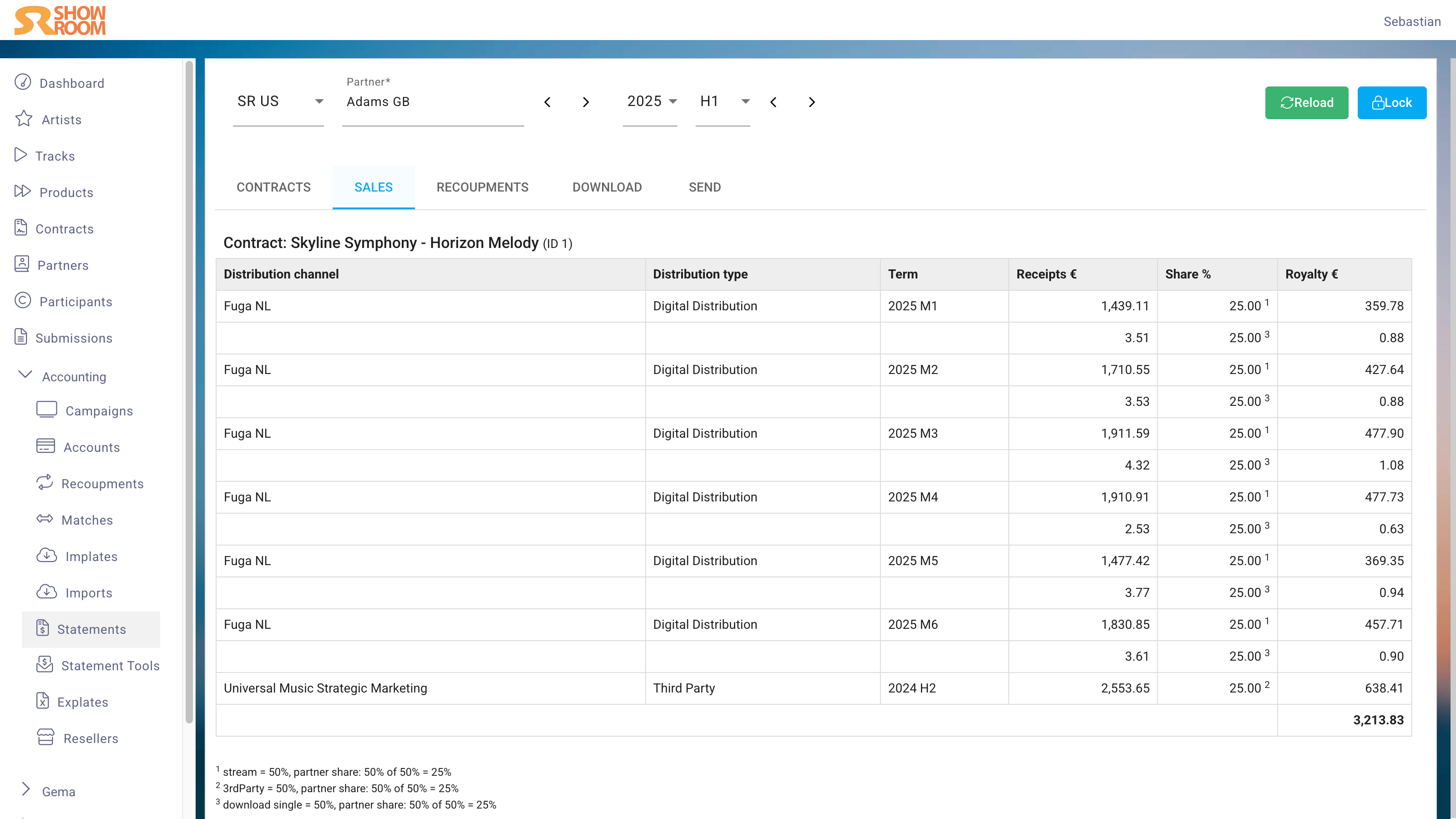
The Sales view lists the individual revenue streams for each Contract and the breakdown of the charges.
Recoupments
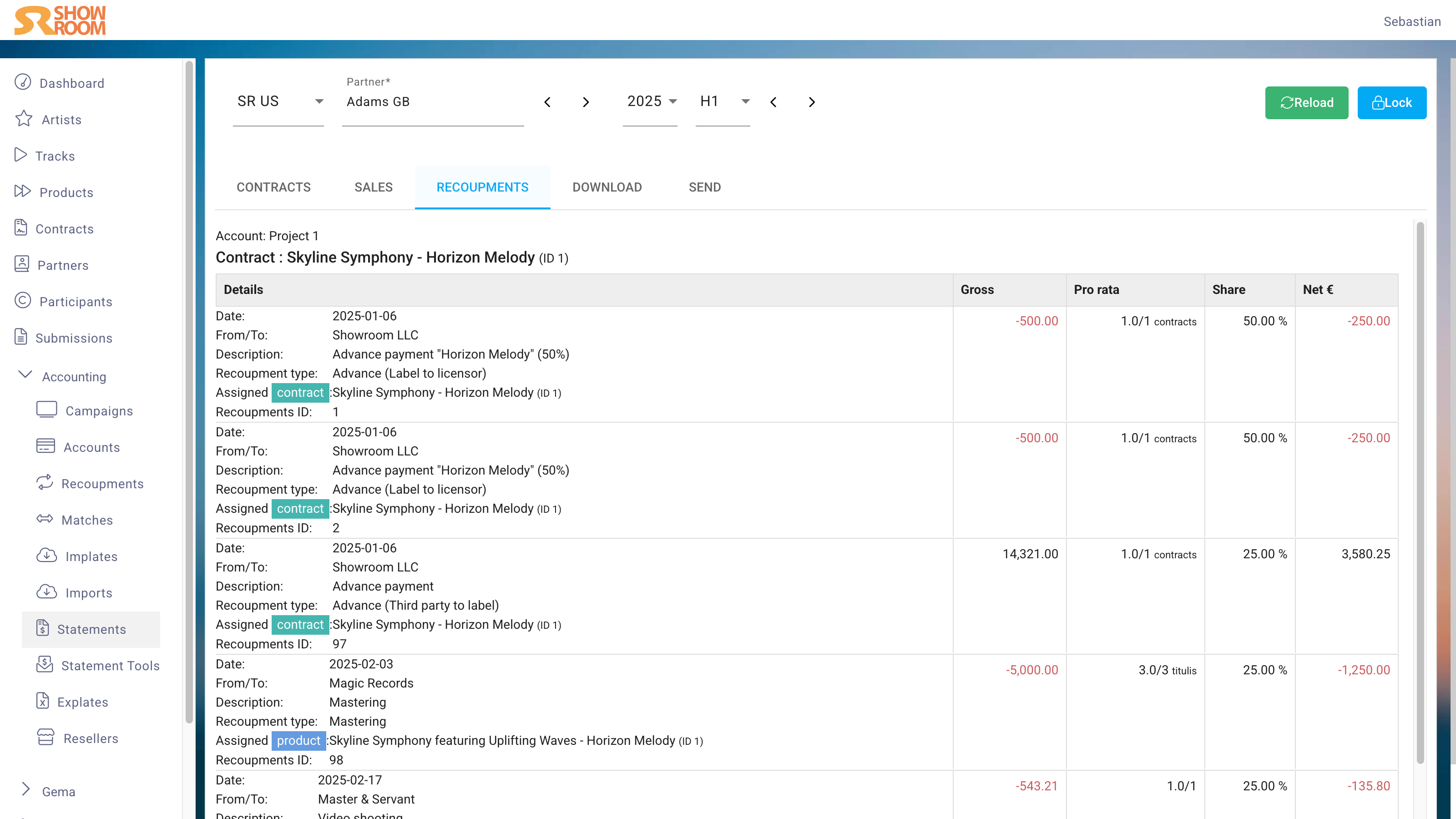
Here all Recoupments are listed, that are accounted in this period and to be settled against the Partner, an Account or a Contract (including Product- and Track-Recoupments).
Download
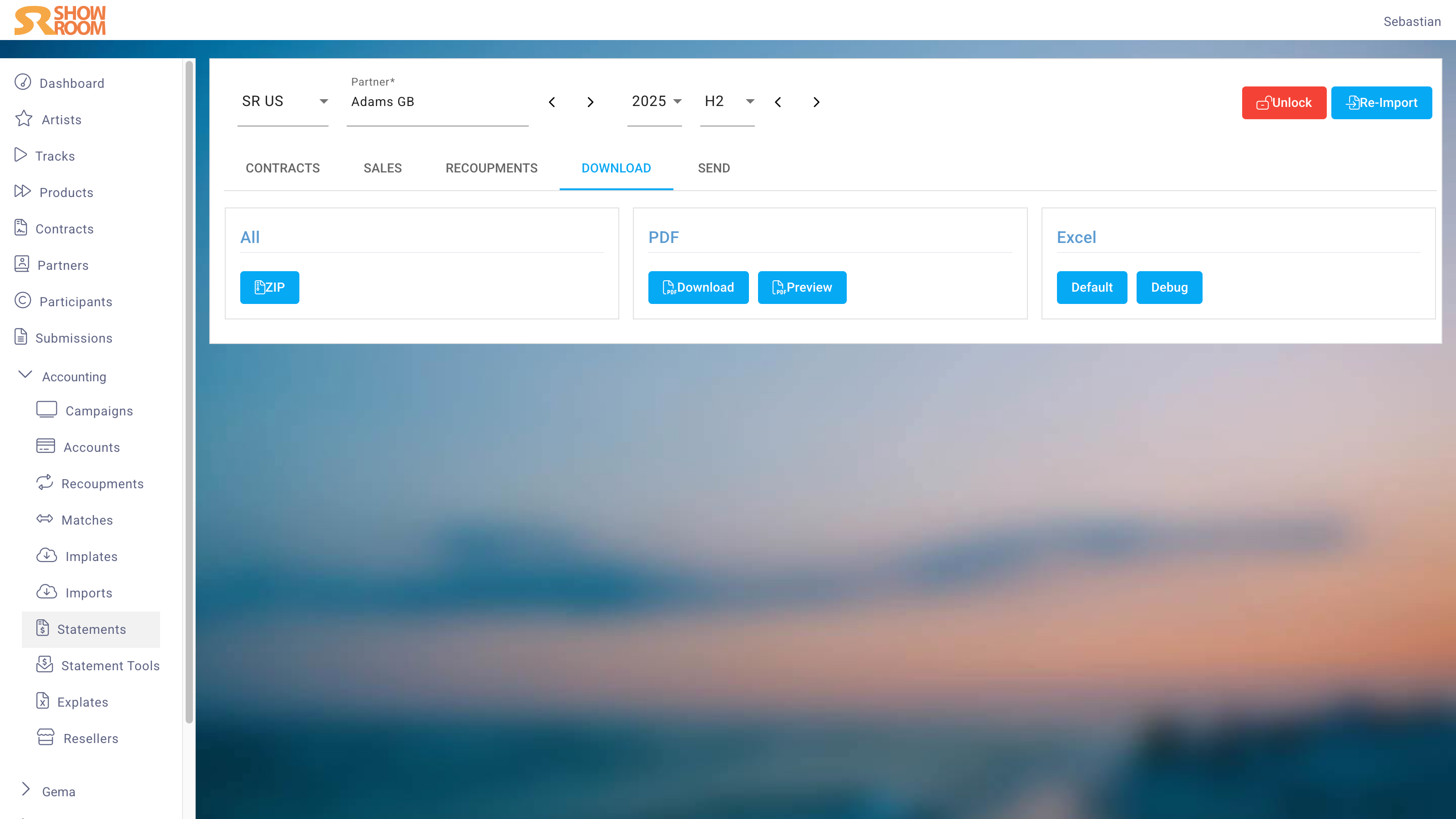
It is possible to download the generated PDF and Excel files individually, for example, to review them individually.
The PDF and Excel documents are sent and made available in the Artist Portal, along with Credit Notes and Certificates.
Debugging Explate
It is good practice to create an internal Explate, specifically designed for troubleshooting, that will not be exposed to the Partners. This allows you to add more columns and quickly view all the details that are not meant to be sent.
Send
If a Statement needs to be sent individually in exceptional cases, this internal function can be used.
Data such as the sending date and the recipient's server response are saved. Therefore, if individual sending is necessary, it is recommended to send Statements individually via the system, rather than manually via an email client.