Contracts
General
Contracts are used to define agreements with rights holders like artists, producers or other parties involved in the revenue. They outline the terms and conditions under which the rights holders will be compensated for the use of the assigned recordings.
A Contract can be for a share in another licensee (license in), or for a share that another party must pay you (license out). While license-in Contracts form the basis for outgoing license payments, out-licensing agreements are created so that the system knows which partners to expect sales reports from or which rights have been granted, for how long, and in which territories.
Types of Contracts
There are five basic types of Contracts:
- Exclusiv in: You receive the exclusive rights to exploit and sublicense recordings. This is typically a band acquisition agreement or an artist exclusivity agreement. Joint ventures are also covered.
- Exclusiv out: You grant these rights.
- Non-exclusiv in: You receive the non-exclusive, product-specific right to use recordings, usually for a compilation.
- Non-exclusiv out: You grant this right. If the licensee wants to use the recordings on other Products later, a separate Contract is required.
- Product in: This agreement governs a third party's revenue share from a Product, independent of any recordings used. This could be merchandise, such as a T-shirt, or a share of the sales for the use of a name or logo.
List view
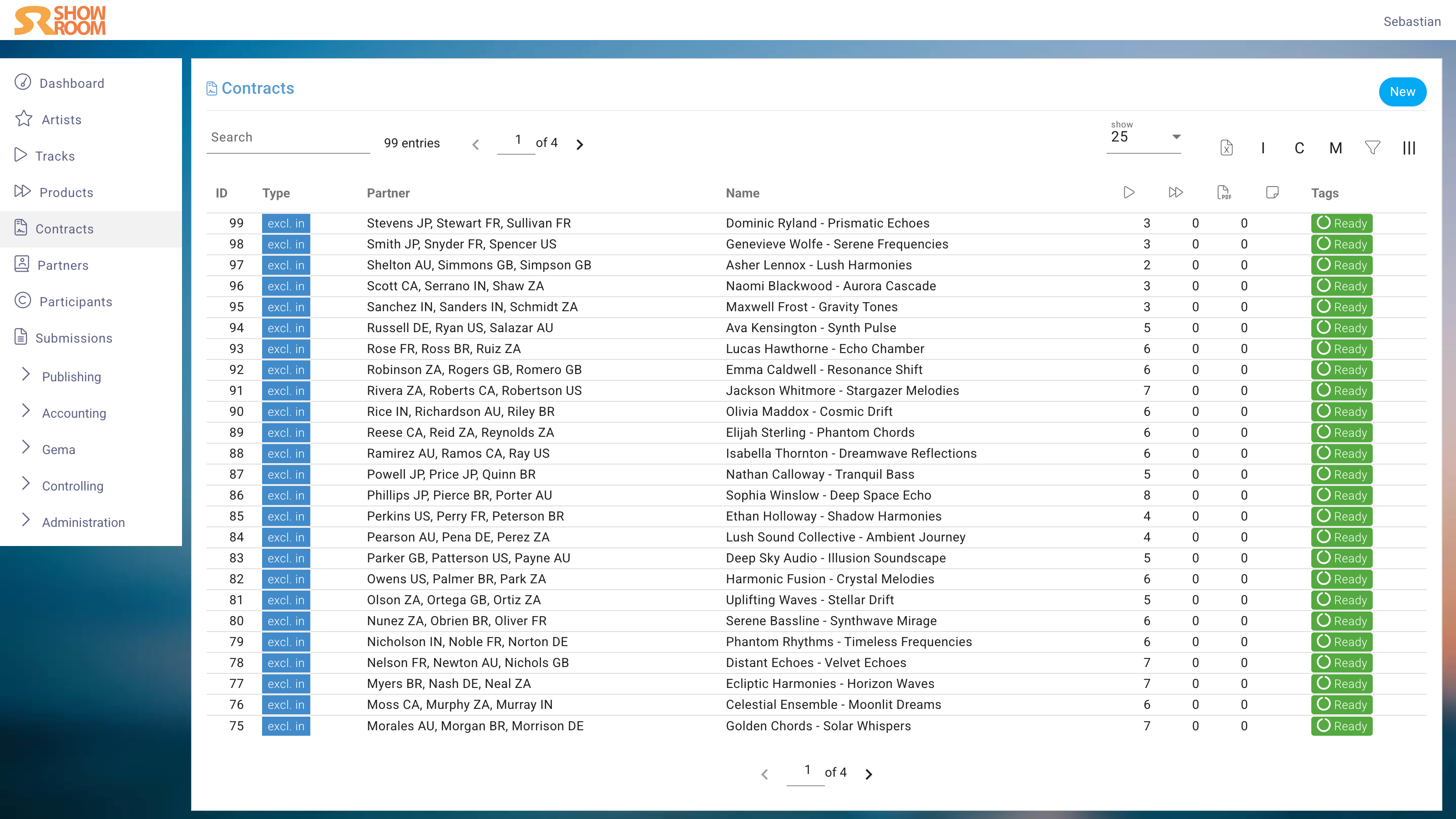
In the List View you see all created Contracts with their key information such as the Contract type, the involved party, the number of assigned Tracks and Products, if the signed copy is uploaded and of course your custom Tags.
I C M
Using the buttons I, C and M in the upper right corner, you can display the shares in the list grouped by income (I), costs (C) and miscellaneous (M).
Edit View
General
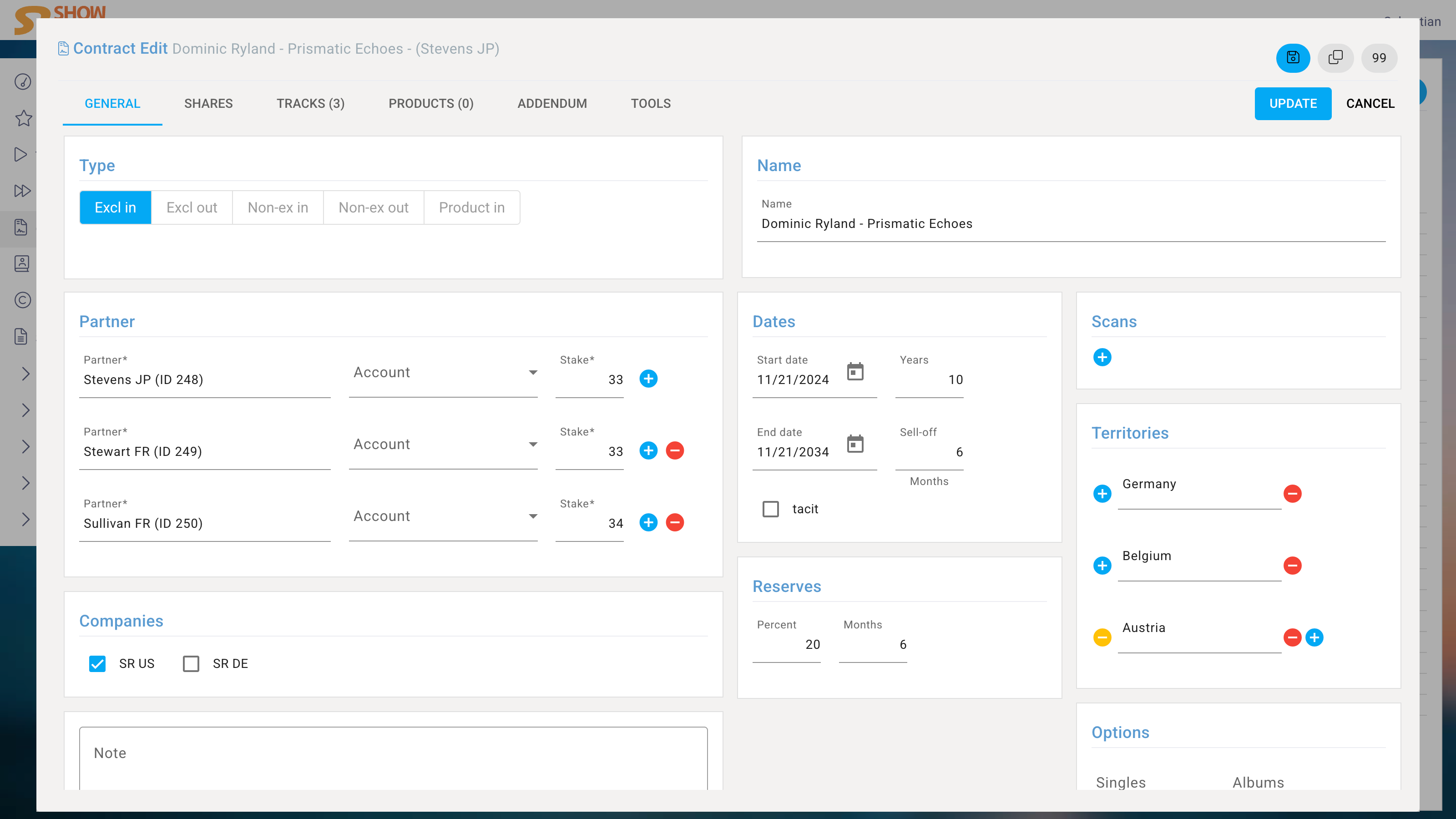
If you click on a Contract in List View, the Edit dialog opens.
Type
Choose one of the five Contract types as described above. Since this is a fundamental setting, it should be done first.
Name
The name of the Contract should be descriptive, for example "Dominic Ryland - Prismatic Echoes". This way, you can easily identify the Contract in the list view and when assigning it to Tracks.
Partners
Select one or more contractual Partners from your Partners database. If more than one Partner is selected, the stake of each Partner must be specified. The sum of the stakes must equal 100%.
If the Partner has multiple Accounts, one Account can be selected to cross-account Contracts of the same Partner or simply to group them.
Companies
If there are multiple Companies in the database, you can select which Companies' revenues should be included in royalty statements.
If the sales reports for more than one Company should be included, multiple selections are possible.
Dates
After entering the start date and the Contract duration in years, the end date is calculated automatically. If the end date is changed, the Contract duration is recalculated.
Selloff* specifies the number of months after the Contract expires during which previously released Products using the licensed recordings may be sold.
The Tacit checkbox indicates that the Contract will automatically renew for another year unless terminated by either party.
Reserves
Rturn reserves are used to withhold a certain percentage of the royalties until a specific date. This is often done to cover potential returns. For example, if a reserve of 20% is set until 6 months after the end date, 20% of the royalties will be withheld until that date. After that, the withheld amount will be released and paid out to the rights holders.
The returns reserve is applied to physical sales and third-party licensing.
Scans
If the integrated e-signature function was used to create and sign the Contract, the signed PDF document will be automatically located here.
If the Contract was signed outside the system, the PDF document can be uploaded later.
Additional documents, such as email correspondence, can also be added here.
Options
To compensate for the increased costs incurred by the licensee when establishing a project, it is common practice to grant the licensee options for subsequent releases. The licensor must therefore first offer the licensee the following releases, and the licensee has the opportunity to license them under the same conditions. Only if the licensee declines the subsequent licensing may the licensor offer the new recordings to other parties.
Territories
Shares
Shares specify the participation in income and expenses, as well as reductions, advances, fees or general deductions.
Bases %
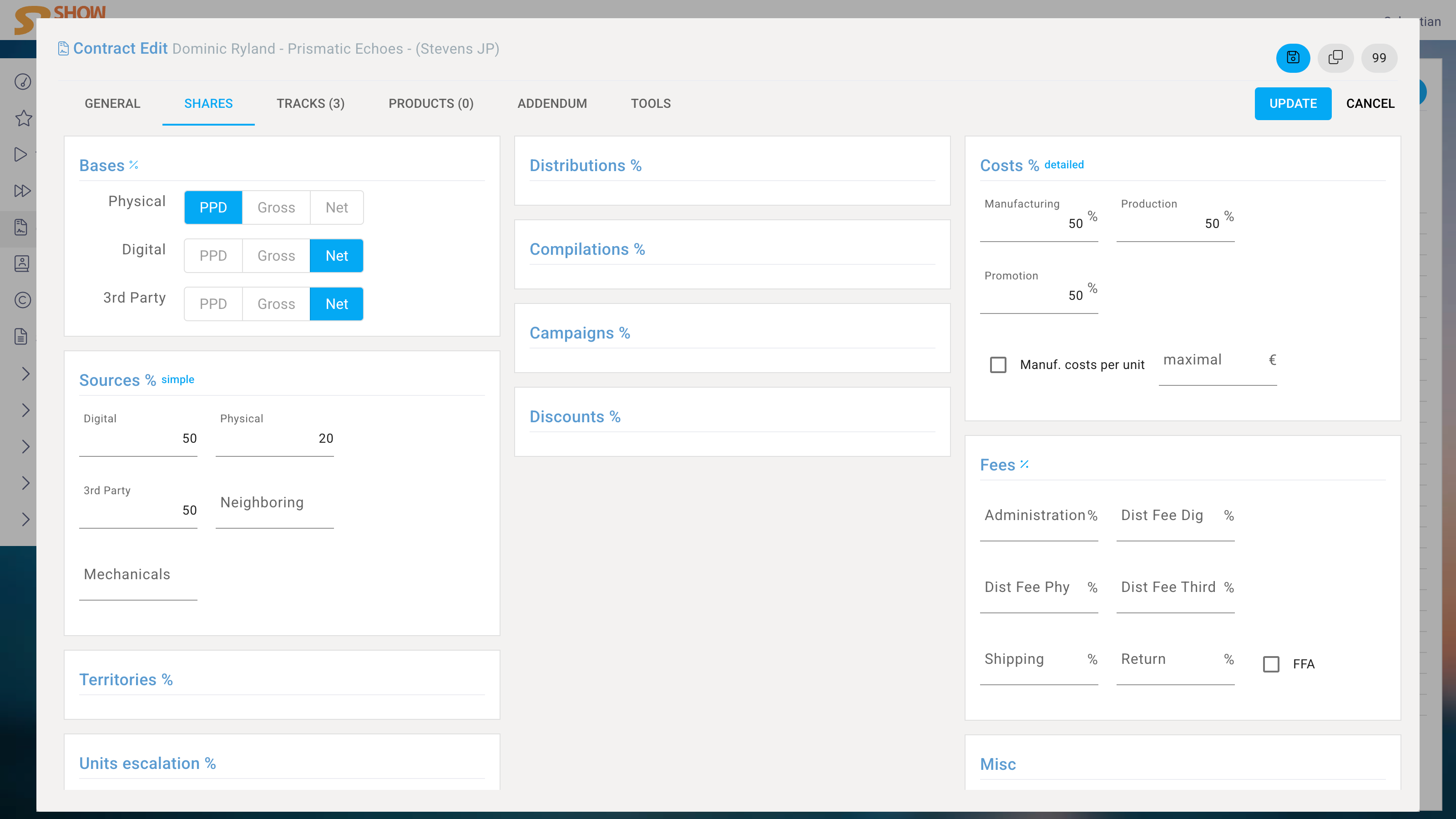
One of the most fundamental settings is the base to which the following percentages refer.
- PPD: The Published Price to Dealer, which is the price that the label lists in order forms. This is realistically only applicable to physical sales, as digital Products virtually never have a PPD these days.
- Gross: What the distributor receives from the dealer, minus bonuses and discounts.
- Net: What the label receives from the distributor, so minus the distribution margin.
- Fixed amount: Clicking the % symbol right the "Bases" allows you to set a fixed amount per unit sold. This means there is no percentage commission, but further percentage reductions are possible.
Sources %
Here, the basic shares are determined according to the evaluation method:
- Digital: Online sales such as streams and downloads
- Physical: Revenue from the sale of physical media such as CDs or vinyl
- 3rd Party: Third-party licensing such as bundling agreements or synchronization
- Neighboring: Revenue from neighboring rights, which are generated when recordings are publicly performed or broadcasted.
- Mechanicals: If copyright levies were imported as product-based billing, these are passed on proportionally to the partner.
If you click on "simple", you can further subdivide the share for Digital into Streaming, Single Download and Bundle Download.
Relative vs. Absolute
The following settings allow you to choose between relative and absolute percentages.
Relative always refers to the source shares. For example, if the source share for physical sales is 20% and a relative share of 80% has been entered for a territory, this results in 16% (80% of 20%). Absolute, on the other hand, displays the actual share, regardless of the source share. If the share for a territory is to be 16%, then 16% must actually be entered in the "Absolute" field.
Mathematically, this amounts to the same thing, but following the wording of the Contract simplifies daily work with Contracts.
Territories %
Sales in different territories may be subject to different royalty rates.
Units escalation %
For physical sales, it is common to have escalating royalty rates based on the number of units sold. For example, the royalty rate may increase after 10,000 units are sold, and then again after 30,000 units. This encourages the rights holders to promote the Product and rewards them for higher sales volumes.
Amount escalation %
For digital sales, it is common to have escalating royalty rates based on the revenue generated. For example, the royalty rate may increase after $10,000 in revenue is generated, and then again after $30,000.
Carriers %
Different, usually lower, license rates may apply to certain carriers. For example, a reduced share is often agreed upon for vinyl records, as the production costs for the licensee are exceptionally high for small production runs.
Partners %
Once a partner is selected, a different license rate can be specified for sales from that partner. For example, if YouTube is set up as a partner and revenue from YouTube is imported as a sales report for this partner, the license rate for YouTube can be set lower than for other digital sales.
Distributions %
If different sales channels are set up in the system, such as retail or mail order, a different share or deduction can be assigned to each sales channel.
Compilations %
Exclusive-in Contracts often stipulate a reduction in remuneration for the use of the contracted recordings on the company's own various artists Products (aka in-house compilations).
Campaigns %
If you have set up campaigns in the system, you can specify a different share for sales that are part of a campaign. This is often the case for promotional campaigns, where the licensee incurs higher costs for marketing and promotion, and therefore a lower share is agreed upon.
E.g., if a campaign on TokTok and other platforms is set up for the release of a new album, the licensee may agree to pay a lower share for sales that occur during the campaign period and some weeks after, as they are investing more in marketing and promotion during that time.
Discounts %
The share for the licensor often changes if the reported PPD is less than the left entered percentage of the Product's PPD and the right entered share will be used.
Example: You set 86% as threshold left and 66,67% as relative deducation right. The physical PPD (set in Product Edit) is 12,34. A reported unit was sold for 8,76 (so below 86% of 12,34), the licensor's share will be 66,67% of the base share. Use the relative/absolute switch to determine if the shares deduct the base shares or if they are applied fixed.
Costs %
Enter the share of expenses here, such as production or marketing costs, that the licensee can deduct from the revenue.
You can specify a share for all types of costs, or, after clicking on simple/detailed, for specific costs related to record production (pressing or shrink wrapping), media production (remixing or mastering), or promotion (marketing, sampling).
The actual costs are entered via Recoupments. There, it can also be precisely determined what the costs were incurred for.
For manufacturing costs, you can also enter a maximum amount per unit.
Fees %
- Administration: A fee for the administrative work involved in managing the Contract and processing payments. The percentage reduction applies to all revenues and will be shown in the invoice under this name.
- Distribution fees: For digital and physical income and third-party licensing, you can specify a distribution fee that will be deducted from the revenue but not exposed to the licensor. This is often used to cover the distribution margin, which is the fee that distributors charge for their services. By specifying a distribution fee, you can ensure that the licensor's share is calculated based on the revenue after deducting the distribution margin.
- Shipping: For physical sales, you can specify a shipping fee that will be deducted from the revenue. This is often used to cover the costs of shipping physical Products to customers.
- Returns: A fee for returns, which is often used to cover the costs associated with processing returns and refunds.
- FFA: In Germany, a levy must be paid to the German Film Fund for film sales. If this levy is to be borne by the licensor, this checkbox must be checked.
Tracks
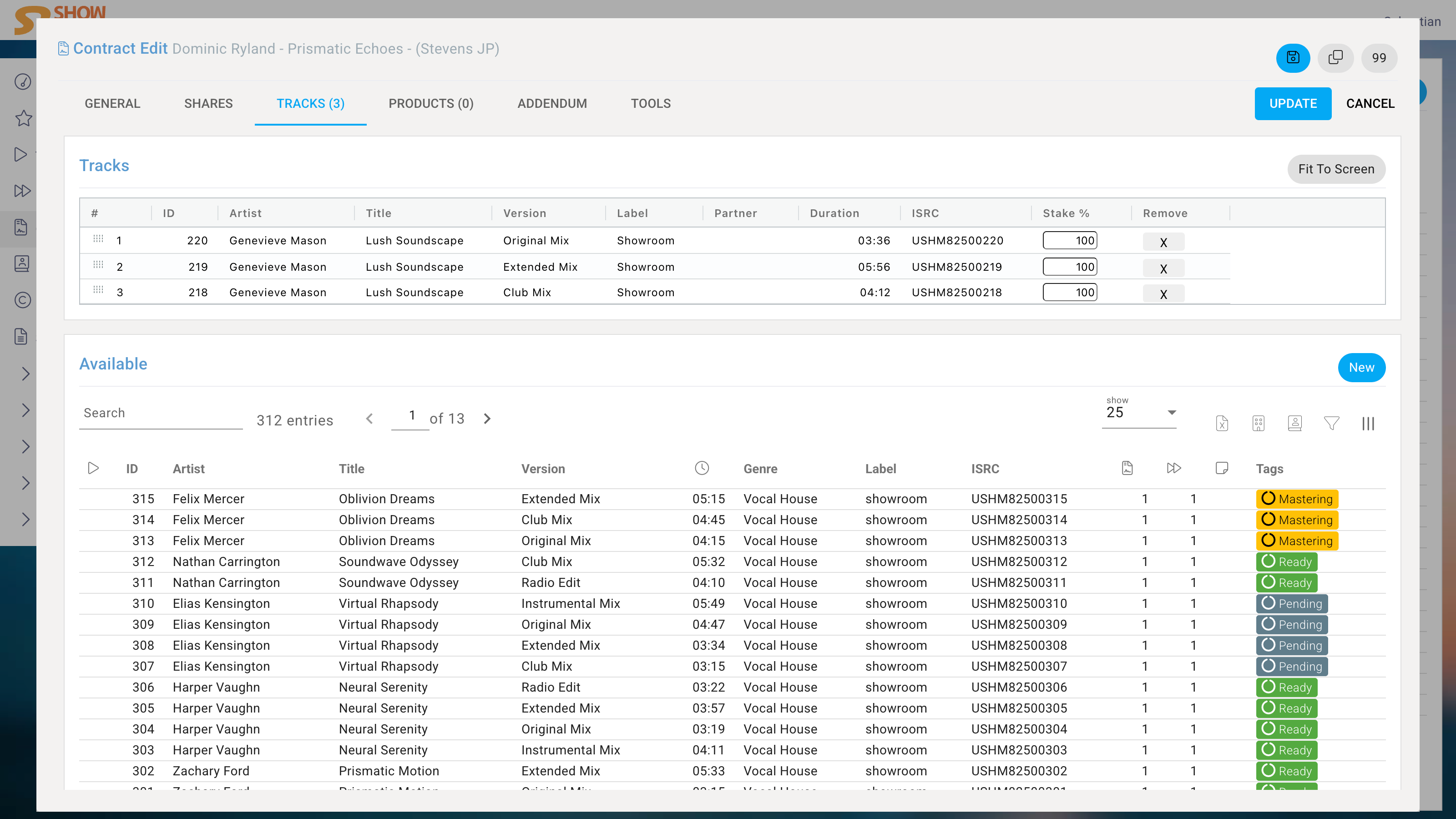
Assigning a recording is done by clicking on a Track in the table below. Once assigned, the Track disappears from the lower table and appears in the upper one.
There, you have the option to specify that the recording only partially infringes the licensor's rights. For example, if a recording is a Continuous Mix of 20 Tracks and the actual contracted recording is one part of it, then 5% must be entered under "Stake".
If the Track does not yet exist in the database, it can be created by clicking on New, without having to leave the Contract form.
Products
Assigning a Product to a Contract is done by clicking on a Product in the lower table below.
Just like with Tracks, a stake can also be specified for a Product. However, there are some special considerations:
Under an exclusive Contract, a Product can only be added if it contains no Tracks. This prevents double billing: once for the Product itself and again for all Tracks as part of that Product.
Since an empty Product cannot be billed pro rata titulis, adding it to the agreement is not only possible but required if it utilizes the licensor's rights.
Merchandise items like T-shirts and mugs can thus be easily billed under the same license agreement.
Under a non-exclusive Contract, a Product can only be added if it contains at least one Track that is already assigned to the Contract. This ensures that payment for a Track under this agreement is only made in connection with its use in this Product.
If a Track is used in other Products that are subject to different terms and conditions, a separate Contract must be drawn up.
In a Product Contract, the assigned Products are not billed based on the assigned Tracks, but the revenue from the entire Product is shared according to the specified shares. Therefore, there are no restrictions on which Products can be added to a Product-in Contract, as the revenue from the entire Product is shared regardless of the assigned Tracks.
Addendum
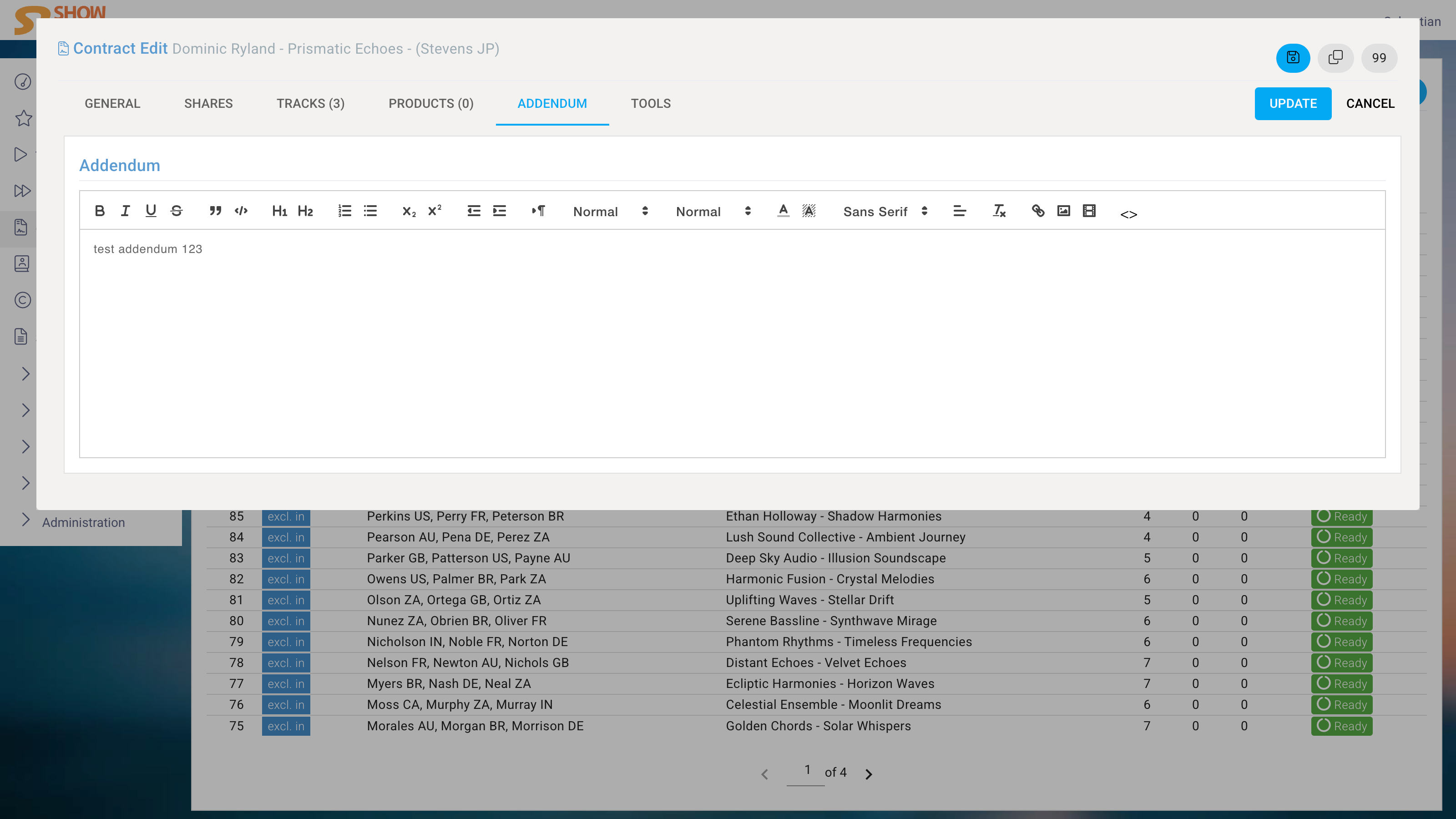
If there are additional agreements besides the standard terms and conditions, these can be recorded in the addendum. This is particularly useful in conjunction with the e-signature function, as the documents to be signed will then have an additional paragraph containing the addendum.
Tools
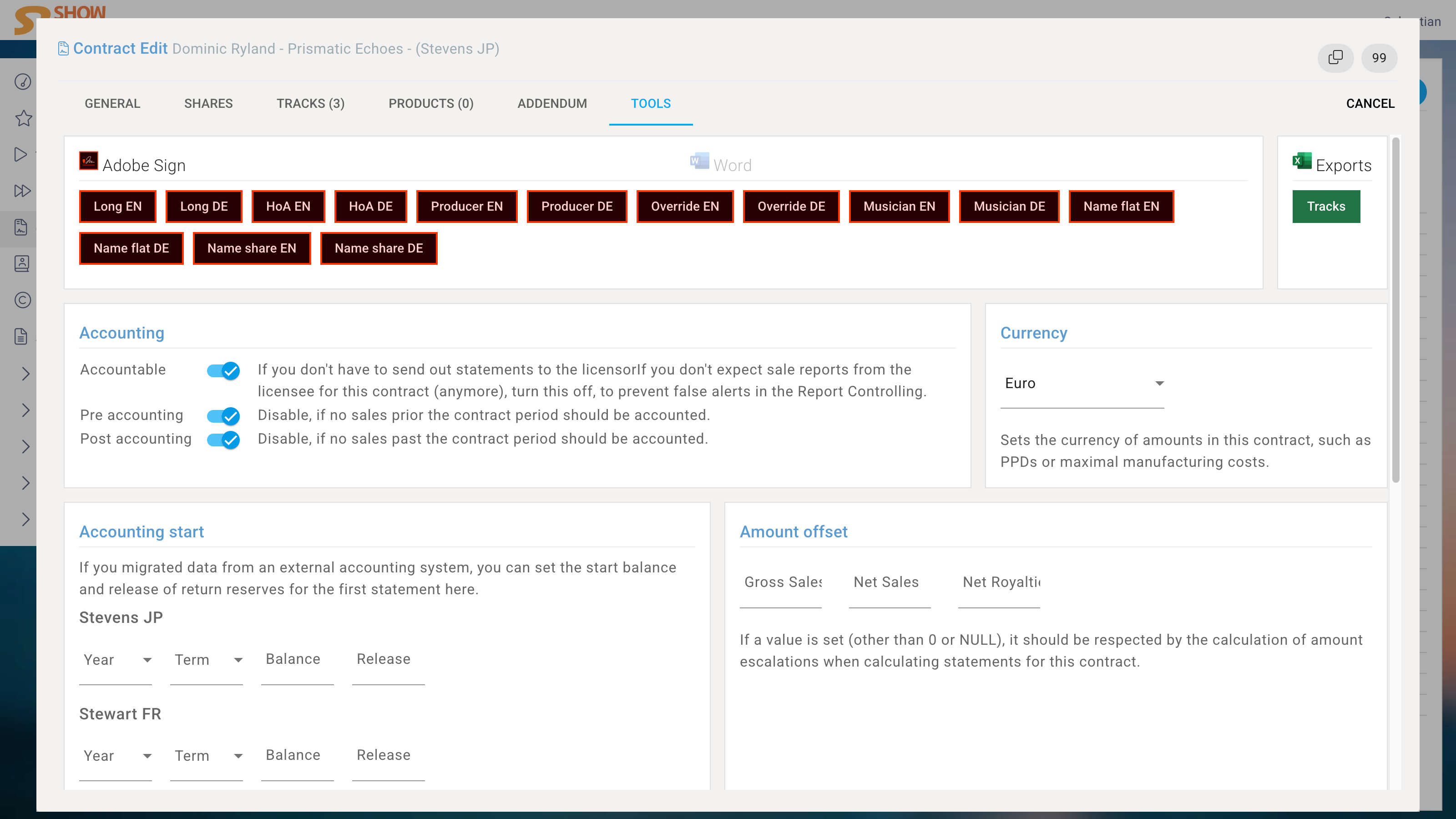
The Tools section contains functions tailored to each instance.
E-Signature
A key tool is the ability to send Contracts to licensors and licensees via services like Adobe Acrobat Sign or DocuSign.
Any number of templates can be saved, or the ones provided by melino can be modified.
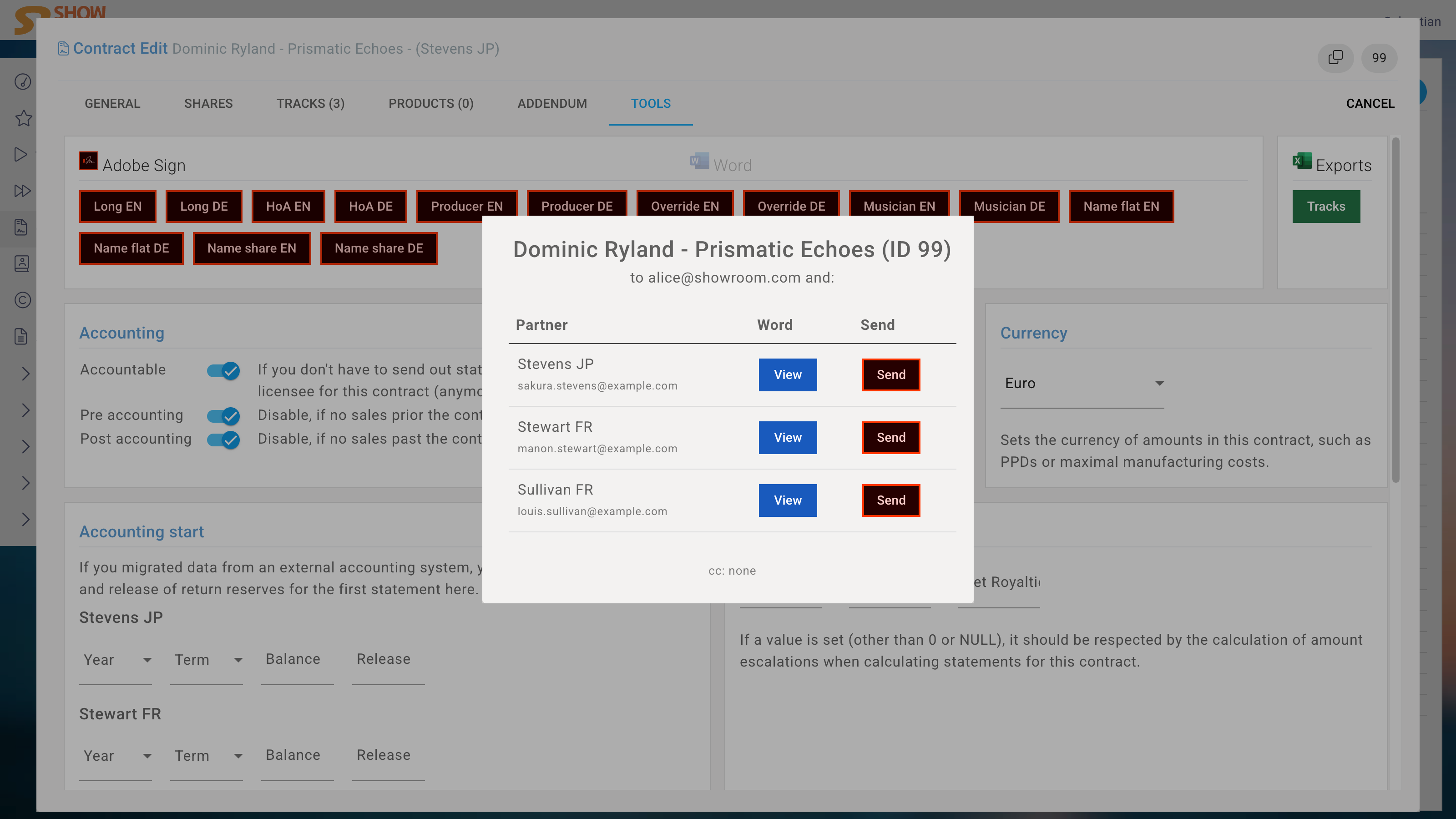
Clicking the corresponding button opens a dialog box where you can download the ready-to-sign Contract as a Word document, review it before sending, or edit the Contract further outside the system.
Clicking Send sends the copy to the specified partner. The network administrator can define the order of signature requests, i.e., whether the licensor is asked to sign the document first, or only after the licensee has done so.
Especially in larger corporate environments, it is common practice for a supervisor to review the Contract before it is automatically sent to the licensor, whose signature makes the Contract valid.
Once a Contract has been signed via e-signature, the completed PDF copy automatically appears in the General tab under Scans.
Accounting
- Accountable: If you don't have to send out statements to the licensorIf you don't expect sale reports from the licensee for this Contract (anymore), turn this off, to prevent false alerts in the Report Controlling.
- Pre accounting Disable, if no sales prior the Contract period should be accounted.
- Post accounting Disable, if no sales past the Contract period should be accounted.
Currency
Sets the currency of amounts in this Contract, such as PPDs or maximal manufacturing costs.
Accounting start
If you migrated data from an external accounting system, you can set the start balance and release of return reserves for the first statement here.
Amount offset
If a value is set (other than 0 or NULL), it should be respected by the calculation of amount escalations when calculating statements for this Contract.
Canceled
Turn this on, if the Contract's origin cancelation date is not reached, but the Contract is no longer valid.
Do not delete canceled Contracts that are still accounted.
Not accountable products
If there are Products that should not be accounted under this Contract, they can be added here. This is often the case for charity Products, for example, where the revenue is not shared with the licensor.